The quick answer
Write a button label so someone can predict the immediate action it will perform. Match the wording to the actual behavior, distinguish competing actions and check the visible label alongside the control's accessible name and result.
Write a button label so someone can predict the immediate action it will perform. Match the wording to the actual behavior, distinguish competing actions and check the visible label alongside the control's accessible name and result.
Name the action the interface actually performs
Start with the event behind the control. Does it open a dialog, send a request, save a draft, download a file or navigate to another page? These are different actions even when the controls share the same visual style.
A label such as Get started may be suitable only when the surrounding context makes the next step clear. If it leads to a conversation rather than an account, a label describing that conversation may set a more useful expectation. Do not promise a result the current action does not deliver.
For a service enquiry, agree what happens after activation with the delivery owner. The form planning guide covers the states and confirmation around that wider task.
Distinguish a link from a command
A pill-shaped control can still be a link. The implementation should reflect its function rather than use appearance as the only clue. W3C's button pattern distinguishes commands from links and describes expected button behavior.
When reviewing a design, ask the implementer to identify the destination or command behind each action. Use the appropriate native control where possible and evaluate the resulting interaction. Changing a word does not repair an incorrect role or an inaccessible interaction.
Keep this distinction visible in the handoff. A copy deck with a label but no destination or behavior leaves an important decision unresolved.
Use enough detail to separate nearby actions
Compare labels as a group, not only one at a time. If a resource offers a file download and printing, those actions need distinguishable wording. If a form offers saving and final submission, the labels need to make that difference clear.
For a fictional project portal, Save draft and Send for review describe different immediate steps. Calling both Continue would force the surrounding layout to carry more of that distinction. The example is illustrative; it does not claim that a particular wording improves conversion for every portal.
Avoid adding words merely to make a button sound more persuasive. Review whether each word helps identify the action, object or commitment. If a short label is ambiguous and a longer label does not fit, revisit the surrounding component rather than shrinking the text until it becomes difficult to use.
An observed resource-page example
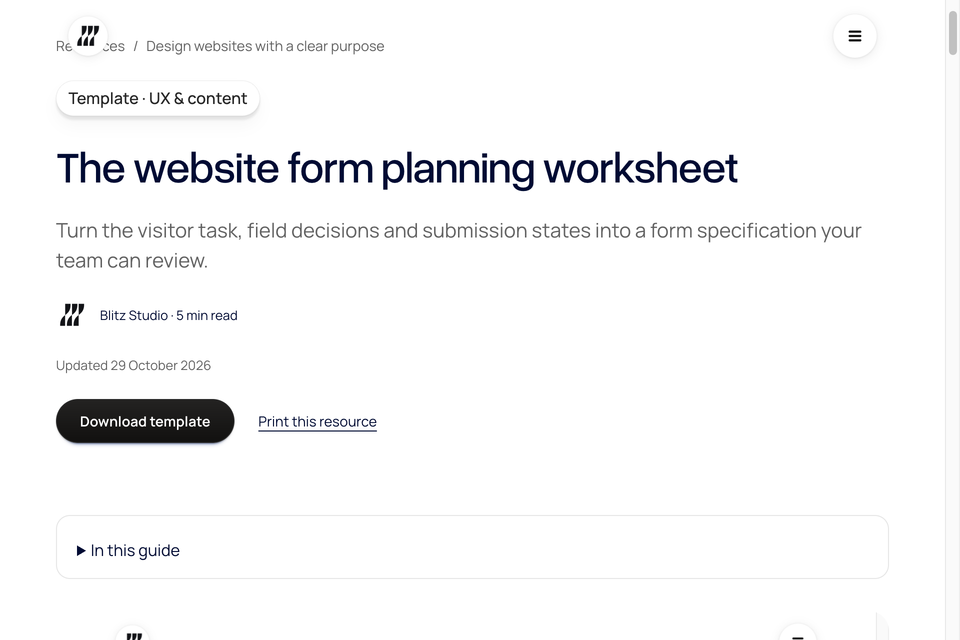
The live website form planning worksheet offers Download template and Print this resource. In the rendered page checked on 31 October 2026, the first was a file link with a download attribute and the second was a native button.
The wording distinguishes obtaining an editable file from invoking the page's print action. The screenshot shows those actual controls. It is not an invented interface or evidence that the whole workflow has been certified accessible.
For your own resource, decide whether the visitor needs the file type or another boundary beside the action. If the control opens a preview rather than downloading a file, its label and surrounding copy should describe that actual behavior.
Keep the visible words in the accessible name
Review the label that people see and the name exposed programmatically. W3C's Label in Name guidance explains why the visible words should be included in the accessible name, including for speech-input users.
Do not silently replace a clear visible label with unrelated hidden wording. If extra context is needed to distinguish repeated actions, add it in a way that preserves the visible wording and can be reviewed in the actual implementation.
Inspect the rendered control, not only the design annotation. A later script, component wrapper or content change can affect the name that is ultimately exposed.
Plan states as part of the wording
Agree how the action is represented while work is happening, when it is unavailable and after it completes. A control that sends a request may need progress feedback and a truthful confirmation; those decisions belong to the interaction, not just the default button label.
Keep error recovery understandable. If a request was not accepted, the interface should not announce a completed result. If information must be corrected, explain the relevant next step where it can be found.
Toggle controls are a separate case. Follow the applicable interaction pattern and review how the label and state are communicated together. Do not apply a rule for a one-time submit action blindly to a two-state control.
Review the label in its real context
Check the control on a narrow screen, alongside neighboring actions and after real content has replaced a short placeholder. Review keyboard activation, the resulting state and where the person continues afterward.
A small review record can name the starting condition, visible label, exposed role/name, expected immediate result and observed result. Record any unresolved question about a destination, commitment or downstream delivery. A copy review alone cannot establish that the backend completed its job.
Use the navigation planning worksheet for destinations and the form planning worksheet for submission states. Keeping those records connected makes the label more than a last-minute phrase added to a finished layout.
Primary W3C guidance and the live resource controls were checked on 31 October 2026. The project-portal example is fictional. No participant study, conversion improvement or complete accessibility certification is claimed.

The Blitz Studio team
We design brands, build websites and engineer digital products.
Talk about your next project