The quick answer
To create a website on WordPress, choose how you will host it, plan your pages, select a suitable theme, add your content and test the whole experience before launch. The first useful decision is what your visitor needs to accomplish.

Start with the right WordPress
To create a website on WordPress, choose how you will host it, plan your pages, select a suitable theme, add your content and test the whole experience before launch. The first useful decision is what your visitor needs to accomplish.
WordPress.com is a hosted service. WordPress.org provides the open-source software you can install with a hosting provider. Both use WordPress, but hosting, available features and responsibility for maintenance depend on your chosen setup. Read our WordPress.com vs WordPress.org comparison if you have not made that decision yet.
This guide focuses on planning a small business website with self-hosted WordPress. A managed host may take care of parts of installation, updates and backups. Check the actual service agreement rather than assuming that everything is included.
1. Give your website a specific job
Write one sentence describing the primary task: “Help a potential client understand our accounting services and request a consultation.” This is a worked planning example, not a claim about a Blitz client.
That task leads to practical requirements: a clear service explanation, information that helps someone assess the business and a reliable enquiry route. A large collection of visual effects would not answer those requirements on its own.
Record the audience, primary action, essential pages, content owner and launch constraints in a website brief. Separate essential requirements from improvements you can make later.
2. Choose a domain and hosting arrangement
Use a domain your business can own and renew. Keep access to the registrar account, renewal email and billing details with the business. A website should not depend on one former contractor's personal account.
For hosting, compare the things that affect operation: supported WordPress requirements, HTTPS, backup frequency, restore access, staging, support, storage and renewal terms. Check which tasks the provider manages and which remain yours.
If you already have business email on the domain, identify the existing email records before changing DNS. Ask whoever manages your domain to preserve the records needed for email and other services.
3. Install WordPress and review the basics
Many hosts offer an installation flow. Use the host's current instructions and the official WordPress installation guidance for your chosen environment. Avoid following screenshots from an old tutorial when the current interface differs.
After installation, review the site title, administrative email, timezone and permalink structure. Use individual accounts with the access each person needs. Remove sample content you do not intend to publish.
Keep an unfinished staging site out of search while you work. WordPress's search visibility setting asks search engines not to index the site; it is not access control. Use authentication when a staging environment needs to be private. Review that setting again at launch.
4. Plan pages before choosing a theme
For the worked accounting example, a useful starting structure would be Home, Services, About and Contact. Add a separate service page when it answers a distinct customer need. Do not create separate pages for near-identical wording solely to target extra search phrases.
For each page, write down its audience, the question it answers and the next step. On a service page, that might mean explaining who the service suits, what is included, what information the business needs and how to enquire.
Decide which content belongs in pages and which belongs in regularly published posts. Keep navigation labels familiar. A visitor should not need to learn your internal project names to find your services.
5. Choose a theme you can maintain
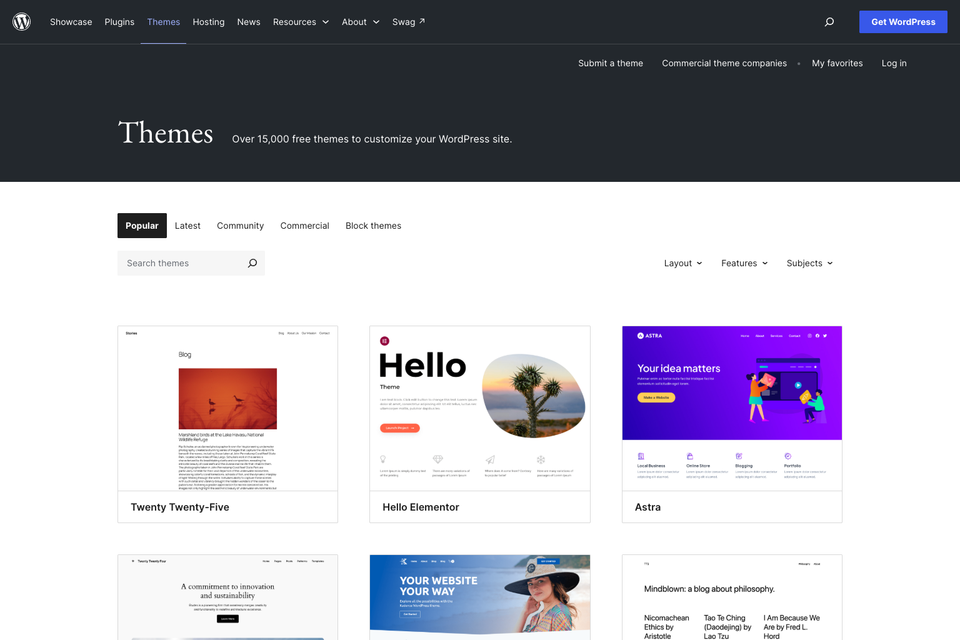
A block theme uses the Site Editor to edit supported site areas. Other themes may use different customization workflows. Theme documentation is the best place to check how headers, navigation and templates work for that theme.
Evaluate a theme using your actual content. Check a long page title, a service page, navigation on a small screen and a form with validation messages. A polished demo with short placeholder text can hide problems your real content exposes.
Start with consistent heading sizes, readable paragraph widths and clear buttons. Avoid adding a page builder and several overlapping design plugins without understanding why each is needed. Every extra dependency needs an owner and a maintenance plan.
6. Build your pages and contact route
Create the essential pages, add the content and choose the intended homepage in the Reading settings where applicable. Build navigation using the tools supplied by your theme. Interface locations vary between block themes and other themes.
Compress images, use appropriate dimensions and give meaningful images useful alternative text. Decorative images can have an empty alternative. Keep essential information in selectable text rather than baking it into a graphic.
For enquiries, collect only the information your team needs. Test a complete submission, confirm delivery to the intended inbox and make the success message explain what happens next. A form that looks correct but never delivers an enquiry is a launch blocker.
7. Prepare for search and a useful page experience
Give every important page a descriptive title and a clear main heading. Write page content for the visitor's actual question. Link to related pages using words that explain the destination. Make sure important links are real links that work without a click-only script.
A sitemap helps search engines discover URLs, but submitting one does not guarantee indexing or rankings. Use the SEO features available in your setup and avoid installing multiple tools that output conflicting metadata.
Read our website structure guide for a practical way to connect service pages, topic hubs and articles. Technical checks support useful content; they do not replace it.
8. Test, publish and keep an owner
Walk through the site on a phone and a desktop. Use a keyboard to reach links and forms. Check navigation, error messages, image loading, contact delivery and the confirmation state after submission.
If you are replacing a website, map old URLs to appropriate new destinations before launch. Keep useful existing URLs when possible. Test redirects individually and confirm that missing pages return a real 404.
After publishing, check the public domain, HTTPS, indexability, contact route and analytics setup. Keep a record of who owns updates, backups, renewals and support. Use the website launch checklist to keep those checks together.
What should you do next?
If your requirements fit a straightforward business website, fill in the brief and build a small complete version first. If you need customer accounts, a complex catalogue or application logic, document those flows before selecting the stack. Talk to Blitz Studio when you want help turning that scope into a design and build plan.
Sources and further reading
- WordPress: Get started
- WordPress: Installing WordPress
- WordPress.com: WordPress.com vs WordPress.org
- Google Search Central: SEO Starter Guide

The Blitz Studio team
We design brands, build websites and engineer digital products.
Talk about your next project